Client LoginView your Shopping CartHelp & Frequently Asked QuestionsEmail Us
Home Services Portfolio Web Design Pricing Dreamweaver Templates Web Applications Free Tutorials About Contact Us
Services > CSS Web Design | Professional Logo Design | ASP.net, ASP & PHP Programming | Flash Animation & Programming | Reliable Web Hosting | Website Maintenance
Portfolio > Web Design Portfolio | Web Programming Portfolio | Logo Design Portfolio | Web Design Pricing > Custom Web Design | Logo Design | Business Card Design
Web Design Guide > Website Design w/ Dreamweaver & Fireworks | Fireworks CS4 Cool Features | Photo Effects | Text Effects | Graphic Design Ideas | Web Design Ideas
Website Navigation Ideas | CSS Styles Tutorial | Dreamweaver Template | Server Side Includes | Flash Tutorials > Flash Effects | Flash Sound Button | Sound On/Off Button
Flash Preloader | Import External Data | Promotion > SEO Tips | Google Tips & Page Rank | JavaScript > Date Validation | Email Validation | Phone Validation | Tip Boxes

Flash Graphics Tips

How to create Attractive Graphic Effects

In this tutorial you'll learn how to create attractive graphic objects that use various Fill options/effects to make them unique and attractive.

Recommended Version: Adobe Flash CS4 Professional

Compatible Versions of Flash for this Tutorial

Flash MX 2004 & below | Flash 8 | Flash CS3 | Flash CS4
Note: For uses of lower versions of Flash some visual interface images would differ.
Recommended Version: Adobe Flash CS4 Professional
You Are Here ::: Home >> Free Tutorials >> Flash Tutorials >> Flash Graphics Tips

Using Bitmap images as Fills

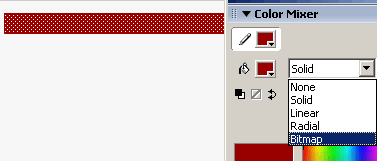
  1. The Color Mixer panel shows 5 fill options namely, None, Solid, Linear, Radial and Bitmap. In this section you will learn how to use bitmap images as fills.
  2. Create a vector using any of the tools in Flash, say a rectangle tool to draw a bar as shown below:
  3. Open Color Mixer Panel and select Bitmap option which opens up the Browse pop-up window, now select your bitmap image from its location.
  4. Use the Bucket tool to fill the object with the selected bitmap.
  5. Likewise any number of bitmaps can be imported to the Library and used as bitmap fills, just by selecting them from the Bitmap list and filling them.
  6. That's it you have learnt how to use Bitmap images to create graphics with attractive fills in Flash.
Creating a Ring in Flash

  1. Firstly draw a circle using the circle tool and select Radial Option from the Color Mixer Panel.
  2. You will see 2 colors at the 2 extreme points, now to convert your circle into a similar Ring, make changes to your Color Mixer Panel accordingly as shown below:
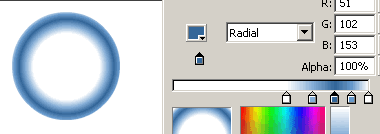


  3. In a similar manner you can add any number of colors at different points to create different effects, just by trial and error method.
  4. Save your work and try out various other effects in a similar manner to produce really cool and attractive graphic objects with varied fills in Flash.

Note: These types of fill adjustments are possible for Linear fill Option also.

We would love to hear your comments and any suggestions on future tutorials we can add to this section. Thanks!

Fill the below form to submit your comments (or suggestions):
Bookmark and Share this web page.
Sponsored Link(s):
Beauty Templates | Business Templates | Christian Templates | CSS Templates | Education Templates | Family Templates | Flash Templates | Free Dreamweaver Templates
Food Templates | General Templates | Government Templates | Health/Medical Templates | Hi-Tech Templates | Kids/Childcare Templates | Low-cost Budget Templates
Personal Templates | Pets Templates | Photography Templates | Profession Templates | Real Estate Templates | Sports Templates | Telecom Templates | Travel Templates
Free Tutorials > Web Design Tutorials | CSS Web Design | Fireworks Tutorials | Dreamweaver Tutorials | Flash Tutorials | SEO Tutorials | Javascript Tutorials | PHP Tutorials

