Adobe Fireworks CS4 New Features [Page 2]
Get to know all the cool new features available in Adobe Fireworks CS4
In the previous page you learnt about the first four new features: the Pages Panel, Styles Panel upgraded, Path Panel and Smart Guides and Tooltips. Now we are going to look at the next four prominent new features.
CSS Export
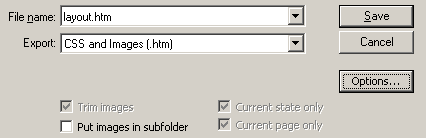
Adobe Fireworks becomes CSS Savvy! Using Adobe Fireworks CS4 you can now design CSS-based layouts in Fireworks and then convert them to well coded CSS programmed HTML pages. To export as CSS and images, you need to add slices to all the images as usual. Now you need to set the type option as Background Image for all the Slices of fill and background images.
To use CSS Export, choose File > Export, and then choose CSS and Images from the Export drop-down menu. As always you can place the exported images in a subfolder. A CSS Style sheet is automatically created and positions the entire layout by using the options set from Fireworks HTML Setup.
PDF Export
Adobe Fireworks CS4 takes center stage in Design Prototyping! In Adobe Fireworks CS4 you can export a document as a single PDF file. For this you need to export your page using this function File>> Export >> Adobe PDF (.pdf) from the Export drop down menu. The PDF Export is helpful to show your website to the clients before converting it to html or CSS. You can preserve your designs (PDF file) with password protection by clicking on the option button.

Guide Measure and Measurement Auto Shape
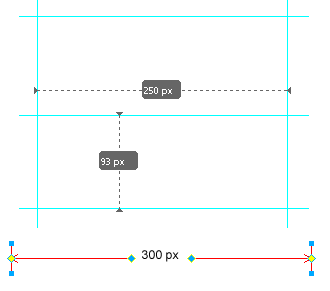
Easier use of guides and now show measurements in prototypes! In Adobe Fireworks CS4 you can make easy measurements with two new tools: Guide Measure and Measure Auto shape. In earlier versions it was always difficult to know the distance between guides (after all that is what guides are for). Fireworks CS4 smashes this hurdle away! When you drag the rulers into the canvas, hold down the shift key and move your cursor between two rulers you will find both horizontal and vertical distance between the nearest rulers. Select the Measure Shape, which is displayed under Vector on the left hand side of the tool bar. Drag out a shape, as you start dragging you will notice the measurements are displayed.
9-Slice Scaling tool
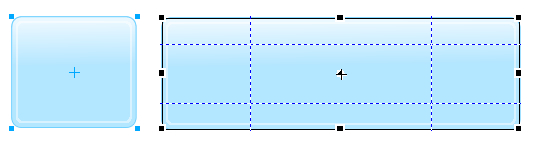
The 9-Slice Scaling tool provides you with a way to quickly scale an object without any distortion. This tool can be used only when you are working with symbols. Double click the symbol, now select the object and choose the 9-Slice Scaling tool from Tool Panel and resize the object. The 9-Slice Scaling tool is suitable for objects such as rectangle with rounded corners and bitmaps.
Back to Page 1 || Continue to Adobe Fireworks CS4 New Features - Page 3
Software Required
Compatible Versions of Fireworks for this Tutorial
 Fireworks CS4 | Fireworks CS5 | Fireworks CS6
Also read our popular web design tutorial series - Design a Website. Recommended Version: Fireworks CS6
Adobe Fireworks CS4 New Features: Page 1 | Page 2 | Page 3
Software Required
Compatible Versions of Fireworks for this Tutorial
Fireworks CS4 | Fireworks CS5 | Fireworks CS6Also read our popular web design tutorial series - Design a Website. Recommended Version: Fireworks CS6