Silver Text
How to create metallic silver text effect with Fireworks CS4+
In this tutorial you are going to learn how to create metallic silver text effect using Adobe Fireworks CS4+. The image below shows how we have created metallic silver effect.
Prerequisite Knowledge
This tutorial teaches you how to create a metallic silver effect using Fireworks and thus assumes you are familiar with some design software, even if you are new to Adobe Fireworks. However be assured that our detailed instructions can be followed by even a total novice to graphic design.
You Are Here ::: Home >> Free Tutorials >> Adobe Fireworks CS4+ Tutorials >> Metallic Silver Text
Metallic Silver Text with Adobe Fireworks
Follow the steps given below:
Color Palette - Metallic Silver Text
- Step 1: Open Adobe Fireworks CS4+ and create a new file of size 500x500 pixels.
- Step 2:
Select the Text tool
 , choose Font – TW Cen MT, Font Size - 35, Color - #990066, Font Weight - bold, Anti-aliasing level - Crisp Anti-Alias and write any text (as you like).
 - Step 3: Click on the color and select the Fill Option >> Fill category >> Gradient >> choose Linear. The gradient option will look as below:
- Step 4:
While the gradient color is still selected, choose the following options:
a. Now click the gradient color, and then click on the small color rectangle that is on the left side and set its color to #EFF0F2.
b. After that, click on the small color rectangle that is on the right side and set its color to #8C8D8F.
c. Now add another four rectangle by clicking the ‘+’ symbol in between the two small color rectangle and set the colors as #898A8C, #2A2B2D, #929397 and #858688. See the illustration below that will show how to set the colors:
 - Note: In Adobe Fireworks CS5 you can reverse the gradients using Reverse Gradients

- Step 5:
We recommend you to apply Inner Bevel effect, so that the text will look as silver. Select the text using Pointer Tool
 . Now on the right side of the properties window, you will find filters, click over the + symbol and choose Inner Bevel from Bevel and Emboss. Click on the tiny blue circle with "i" next to the Inner Bevel filter (Edit and arrange live filters button) and set the following values for the filter: Bevel edge shape – Flat, Width - 2, Contrast – 70%, Softness – 2, Angle – 135 and Button preset - Raised.
 - Step 6:
To apply Drop shadow again click the text using Pointer Tool . Now on the right side of the properties window, you will find filters, click over the + symbol and choose Drop Shadow from Shadow and Glow. Click on the tiny blue circle with "i" next to the Drop Shadow filter (Edit and arrange live filters button) and set the following values for the filter: Opacity – 49%, Softness – 0, Angle – 346, Distance – 2, Color - #B0B1B3. Again select the text and apply drop shadow, now set the values as Opacity – 50%, Softness – 0, Angle – 180, Distance – 2, Color - #C6C7C9. The silver effect will look as below:
- You can also try the above step for gold text by changing the color palette. Click here to view the gold text tutorial.
- Step 1: Select the Text tool , choose Font – Lucida Sans Unicode, Font Size - 45, Color - #000000, Font Weight - bold, Anti-aliasing level - Crisp Anti-Alias and write any text (as you like).
- Step 2: Click on the color and select the Fill Option >> Fill category >> Gradient >> choose Bars. The gradient option will look as below:
- Step 3: While the gradient color is still selected, choose the following options:
a. Now click the gradient color, and then click on the small color rectangle that is on the left side and set its color to #DEDDE2.
b. After that, click on the small color rectangle that is on the right side and set its color to #BBC4D3.
c. Now add another three rectangle by clicking the ‘+’ symbol in between the two small color rectangle and set the colors as #DDDDE2, #F5EDEA and #F7ECF0. See the illustration below that will show how to set the colors: - Note: In Adobe Fireworks CS5 you can reverse the gradients using Reverse Gradients
- Step 4: Now we are going to apply Inner Shadow effect. For this we need to select the text using Pointer Tool . Now on the right side of the properties window, you will find filters, click over the + symbol and choose Inner Shadow from Shadow and Glow. Click on the tiny blue circle with "i" next to the Inner Shadow filter (Edit and arrange live filters button) and set the following values for the filter: Opacity – 40%, Softness – 1, Angle – 99, Distance – 4, Color - #FFFFFF.
- Step 5: We recommend you to apply Inner Bevel effect. Select the text using Pointer Tool. Now on the right side of the properties window, you will find filters, click over the + symbol and choose Inner Bevel from Bevel and Emboss. Click on the tiny blue circle with "i" next to the Inner Bevel filter (Edit and arrange live filters button) and set the following values for the filter: Bevel edge shape – Smooth, Width - 3, Contrast – 100%, Softness – 3, Angle – 85 and Button preset - Raised. Again select the text and apply Drop Shadow, Click on the tiny blue circle with "i" next to the Drop Shadow filter (Edit and arrange live filters button) and set the following values for the filter: as Opacity – 100%, Softness – 3, Angle – 315, Distance – 4, Color - #000000. The silver effect will look as below:
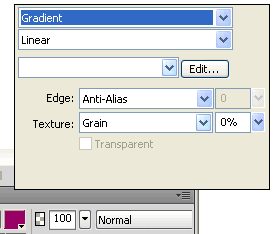
Gradient Settings: Fireworks CS4+ Screenshot
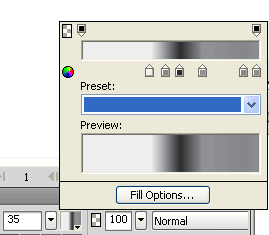
Gradient Settings: Adobe Fireworks CS4 Screenshot
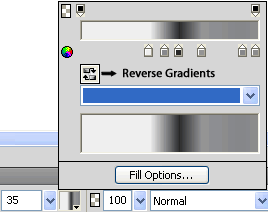
Gradient Settings: Adobe Fireworks CS5 Screenshot


Let us see another example for silver text using Bars effect.
Color Palette - Metallic Silver Effect
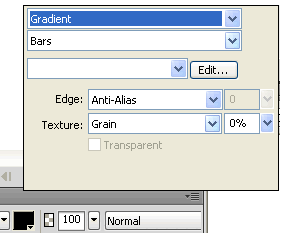
Gradient Settings: Fireworks CS4+ Screenshot
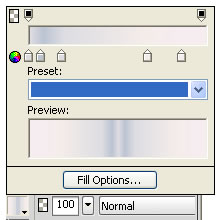
Gradient Settings: Adobe Fireworks CS4 Screenshot
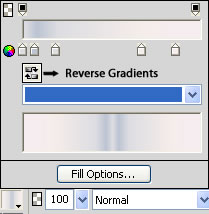
Gradient Settings: Adobe Fireworks CS5 Screenshot

Software Required
Adobe Fireworks CS4+. If you are using the CS3 and below version please read Metallic Silver Effect with Fireworks.
Compatible Versions of Adobe Fireworks for this Tutorial
 Fireworks CS4 | Fireworks CS5 | Fireworks CS6
Adobe Fireworks CS3 & below users: For lower versions of Fireworks, some features, steps and screenshot images may differ. Please read the CS3 & Below version of this free web design tutorial - Metallic Silver Effect with Fireworks.
Recommended Version: Fireworks CS6