Flash Graphic Symbols
What are Graphic symbols in Flash?
Graphic symbols are reusable static images that are used mainly to create animations. Any drawn vector/plain text/imported bitmap (photo), or combinations of these, can be converted into a single controllable object, called a graphic symbol. Graphic Symbols have only one frame in their timeline.
You Are Here ::: Home >> Free Tutorials >> Flash Tutorials >> Flash Graphic SymbolsHow to create a graphic symbol in Flash
Please carry out the following steps in Flash to create graphic symbols.
- First create/import the object(s) to be converted into a graphic. You can import bitmaps onto the stage using Ctrl+R.
- Select the object(s) and then press F8 (or Modify >> Convert to Symbol).
- Select the Graphic Behavior and name the symbol, say 'g_home'.
- To edit it at a later point, double-click the symbol in the library (Ctrl + L) or any of its instances on the stage to switch to its symbol-editing mode as shown below. The name of the symbol will appear near the scene name ('Scene 1' by default, as shown below).
- Make the necessary changes and click 'Scene 1' to exit from the symbol editing mode and go back to view the main movie's time-line.
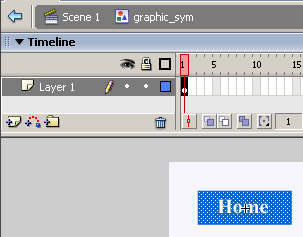
Fig: Symbol-editing Mode of flash graphic 'g_home' (Flash 8 and below)
Flash Symbols
- Overview of Flash Symbols
- Creating Graphic Symbols
- Creating Button Symbols
- Creating Movie-clip Symbols
Software Required
Compatible Versions of Flash for this Tutorial


Flash CS5 Professional | Flash CS4 Professional
Note: For uses of lower versions of Flash some visual interface images would differ.
Recommended Version: Adobe Flash CS5 Professional