Flash Textboxes
How to use textboxes in Flash
This tutorial explains the basics of using Flash text. In Flash there are 3 types of Textboxes - Static, Input & Dynamic. Static texts are used for titles, labels, or other text content that appears in a flash document by default. Input text options are used for user interactivity like obtaining username or other information in a Flash form. The third type of text is Dynamic text, that are used to display text that changes dynamically at runtime.
You Are Here ::: Home >> Free Tutorials >> Flash Tutorials >> Flash TextGet to know how to use the 3 types of Textboxes - Static, Input & Dynamic in Flash.
Static Text
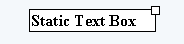
- Drag a Textbox of Fixed-width on the stage using the Text tool and select Static Text Type from the Properties window.
- The Static textbox has a rectangular handle in the upper right corner, which can be used to adjust the size of the Textbox.
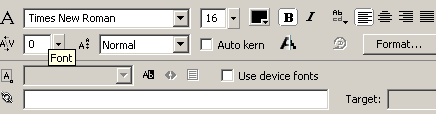
- The various Text properties such as the Font, Font-size, Font-style, Font-color, Align etc. can be set using the Properties inspector as shown above.
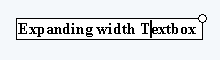
- Expanding-width textboxes can be created by selecting the Text tool and clicking once on the stage without dragging it, and start typing the text in it. Note that the expanding textboxes have a round handle as shown above.
Input Text
- Drag a Textbox on the stage using the Text tool and select Input Text Type from the Properties window.
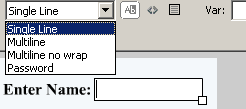
- The Input textbox has a rectangular handle in the lower right corner, which can be used to adjust the size of the Textbox.
- Apart from the normal Font properties of a Static textbox, the Input textbox has more options like, Single Line to display the text as one line, Show Border Around Text to indicate the boundaries of the text field with a visible border.
-
A variable name can also be given which can be used to store user input.
Dynamic Text
- Drag a Textbox on the stage using the Text tool and select Dynamic Text Type from the Properties window.
- The normal Font properties of a textbox can be set for a Dynamic textbox and it also has more options like, variable names can be given, line options can be given say, Single Line to display the text as one line, Selectable and Render text as HTML.
- Variable names are used to assign dynamic values at runtime or obtain values from External Sources.
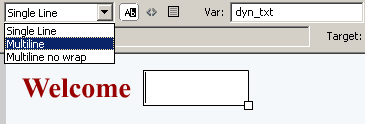
dyn_txt = "SmartWebby Visitor!"
Software Required
Compatible Versions of Flash for this Tutorial


Flash CS5 Professional | Flash CS4 Professional
Note: For uses of lower versions of Flash some visual interface images would differ.
Recommended Version: Adobe Flash CS5 Professional