Client LoginView your Shopping CartHelp & Frequently Asked QuestionsEmail Us
Home Services Portfolio Web Design Pricing Dreamweaver Templates Web Applications Free Tutorials About Contact Us
Services > CSS Web Design | Professional Logo Design | ASP.net, ASP & PHP Programming | Flash Animation & Programming | Reliable Web Hosting | Website Maintenance
Portfolio > Web Design Portfolio | Web Programming Portfolio | Logo Design Portfolio | Web Design Pricing > Custom Web Design | Logo Design | Business Card Design
Web Design Guide > Website Design w/ Dreamweaver & Fireworks | Fireworks CS4 Cool Features | Photo Effects | Text Effects | Graphic Design Ideas | Web Design Ideas
Website Navigation Ideas | CSS Styles Tutorial | Dreamweaver Template | Server Side Includes | Flash Tutorials > Flash Effects | Flash Sound Button | Sound On/Off Button
Flash Preloader | Import External Data | Promotion > SEO Tips | Google Tips & Page Rank | JavaScript > Date Validation | Email Validation | Phone Validation | Tip Boxes

Flash Form Validation

Validation of fields in Flash forms using JScript and VBScript

As part of our Flash and ASP integration tutorial series, this step deals with the concept of validating fields in flash forms. Validation is done to prevent users from giving invalid or null data. Javascript validation should always be accompanied by server-side validation in ASP so that browsers which have javascript disabled are also validated. We will now learn to validate the input form in our Flash 'n' ASP Guest-Book.

Important : To validate forms, you need a Netscape browser version 3.0 or later, or an Internet Explorer browser version 5.0 or later. Browsers must be JavaScript-enabled and have Flash Player 5.

Note : Values or code you will have to enter are given in light blue and red show specific settings to be followed by you. Comments in ASP are in bold green.

Starting Flash Guest-Book Interface
Input form Validation in our Flash 'n' ASP Guest Book

We shall now see how to validate the input form with the Name and Email fields needed to be entered and the email field being a valid email ID

Flash Guest-Book Send function interfaces

  • Double click the Send button and replace the existing action script
    with:
         Set Variable: "error" = ""
           If (name eq "" or email eq "")
                 If (name eq "")
                        Set Variable: "error" = error & "n"
                  End If
                  If (email eq "")
                         Set Variable: "error" = error & "e"
                  End If
                  FS Command ("null", error)
           Else
                  FS Command ("error", email)
           End If

    Logic: Here we are checking if the name or email fields are null. If they are null then we send an FSCommand named "null" to display a javascript pop up messages for the null error. If neither of them are null then we send the email field to be validated through a FSCommand named "error"


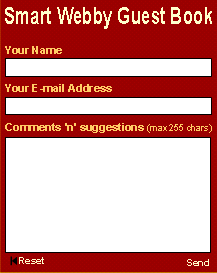
Fig(a): Input Form


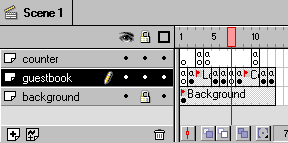
  • Now insert a blank key frame after the 6th frame of the guestbook layer (Thus too retain the old functions you will have to add a frame to the background and counter (after frame 4) layers too). Now double click the frame and give this action script :
        Set Variable: "iSuccess" = 0
         Load Variables ("GuestBookSendCode.asp", "", vars=GET)
         Set Variable: "submit" = True
         Set Variable: "y" = 0
         Play()

    Logic: We are just placing the action script that was previously there in the send button to a frame just after the frame where it is placed.

Finishing Flash Guest-Book Interface

Adding the VBScript and JScript

Cut and paste the following VBScript and JScript in the head content of your guestbook.asp page (where you have placed the guestbook.swf file).

Flash Guest-Book Send function interfaces

1. VB Script :
Logic: guestbook_FSCommand is a subroutine recognized by the Flash Player when an FSCommand is called from a Flash .swf file named "guestbook".

2. JavaScript :
Logic: the funtion guestbook_DoFSCommand is a javascript subroutine called by the VBScript. This function displays error messages through alert boxes if an error is detected and notifies the Flash Player to play() otherwise.

Congratulations! You have now completed our Flash and ASP integration guide - hope you had fun learning with us!

Back to Step 6: Flash Interface Preloader


This tutorial covers the usage of ASP and Flash to bring about Flash dynamic data display and manipulation i.e. interactivity into Flash:

We would love to hear your comments and any suggestions on future tutorials we can add to this section. Thanks!

Fill the below form to submit your comments (or suggestions):
Bookmark and Share this web page.
Sponsored Link(s):
Beauty Templates | Business Templates | Christian Templates | CSS Templates | Education Templates | Family Templates | Flash Templates | Free Dreamweaver Templates
Food Templates | General Templates | Government Templates | Health/Medical Templates | Hi-Tech Templates | Kids/Childcare Templates | Low-cost Budget Templates
Personal Templates | Pets Templates | Photography Templates | Profession Templates | Real Estate Templates | Sports Templates | Telecom Templates | Travel Templates
Free Tutorials > Web Design Tutorials | CSS Web Design | Fireworks Tutorials | Dreamweaver Tutorials | Flash Tutorials | SEO Tutorials | Javascript Tutorials | PHP Tutorials